Check people in at the speed of a scan
A member scans their pass or the desk finds them by name, and the screen answers instantly: welcome, or here is the reason. If they have a class on now, they are checked into it at the same moment.
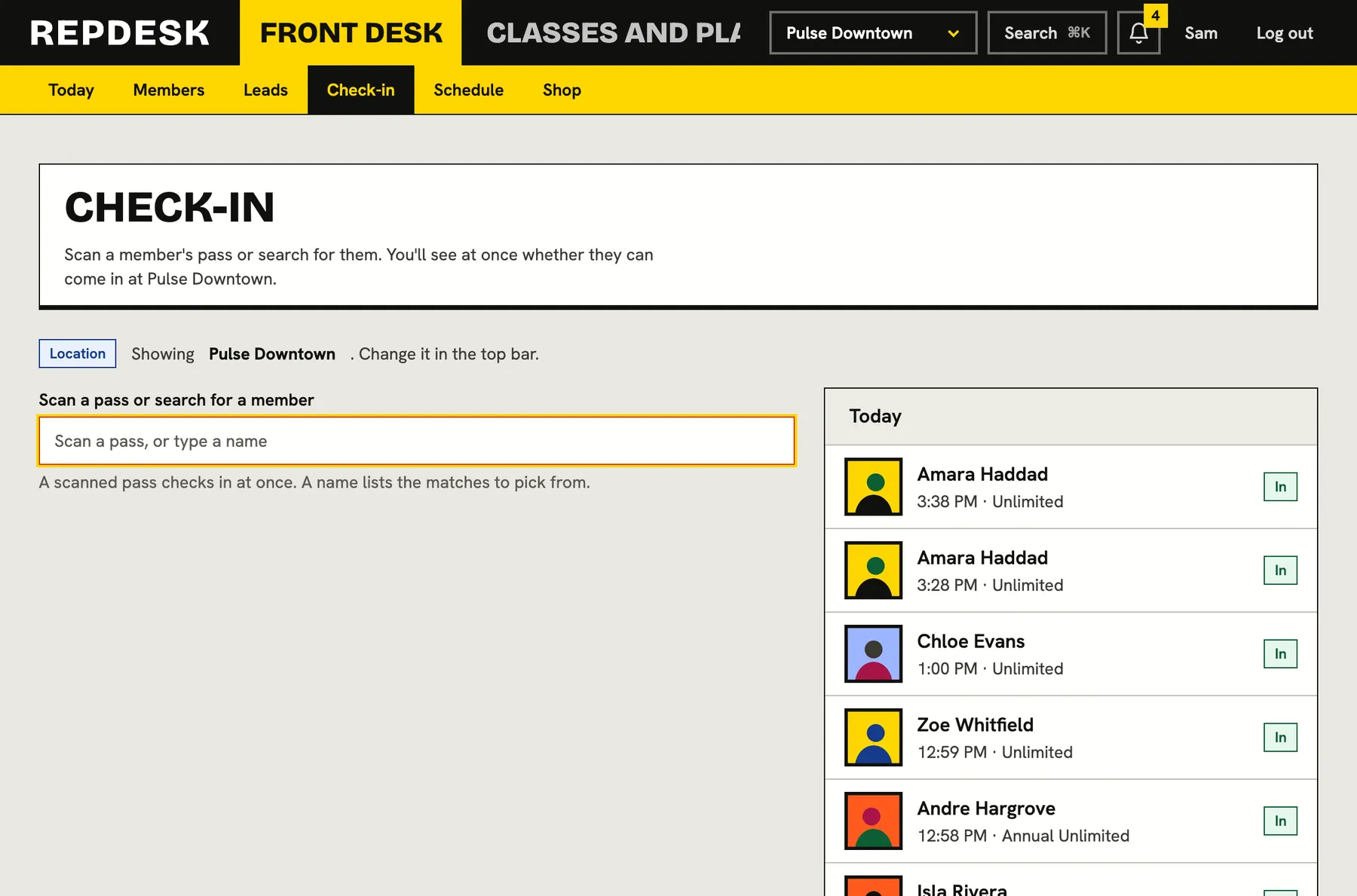
A busy front desk should not be checking payment status, class bookings and waivers in three different places while a queue builds.
One field, two ways in
The check-in screen is a single field that is always ready. Scan a member's pass, a code or QR from their portal, and they are checked in immediately. Type part of a name and live matches appear to pick from, found among the members at your location.
- Every member has a pass with a QR code and a short code in their portal
- Live search by name, email, phone or member number
- Built for a keyboard or scanner, so the desk never reaches for the mouse
- A second scan within a couple of minutes is the same arrival, not a duplicate
The answer is on the screen
The system works out whether the person may come in: a membership that covers today, or a booked class that is on now. If not, it says why in plain words, such as payment overdue, membership frozen, no active membership or blocked, with the label staff put on the flag.
- A membership that is frozen, overdue or not valid today does not let someone in on its own
- A flag that blocks booking blocks entry at the locations it covers
- Refusals are not errors: they come with everything staff need to decide
- Checks follow the location you are working at
The things worth knowing, even when they are let in
Sometimes a member is welcome but there is something the desk should mention. Those notes appear beside the result so a quick word at the counter can sort it out.
- Amount owing on an overdue invoice
- A pass that ends within the week
- Two visits or fewer left on a pack
- A birthday today
Classes and records take care of themselves
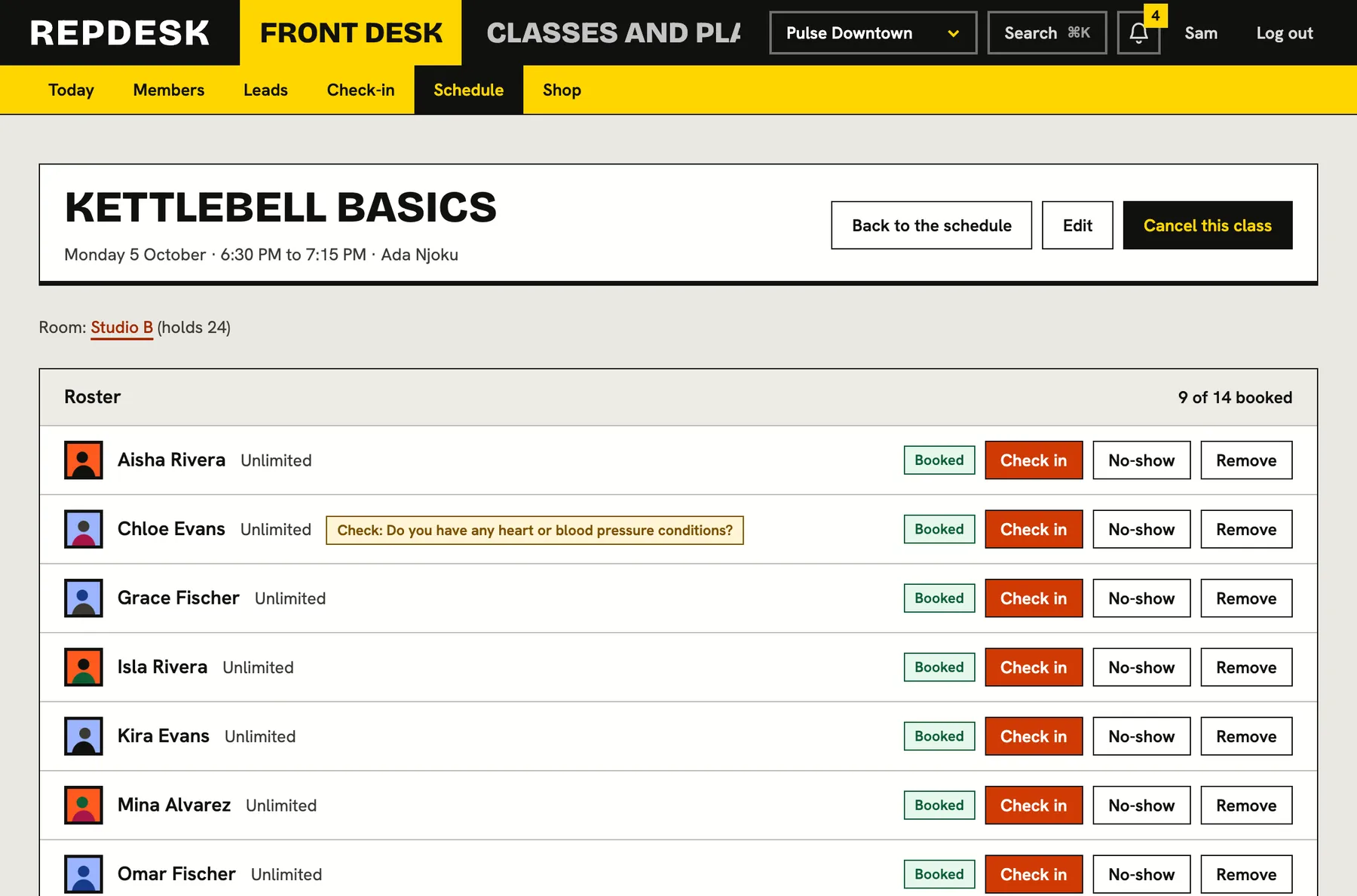
If the member has a class booked that is on now, from an hour before it starts until it finishes, they are checked into that class automatically, and the roster updates. Every attempt, allowed or refused, is kept with the reason, so you have a complete history of who came and who did not.
- Today's arrivals listed live, refusals included
- Let someone in anyway with an override, recorded as an override with a note
- Override is limited to the roles you allow, and every check-in is in the activity log
- Instructors can check people in from the class roster too
The five outcomes at the desk
-
Outcome 1
Welcome, with a class
They have a membership and a class on now. They are checked in to both.
-
Outcome 2
Welcome, no class
Their membership covers today, so a visit is recorded.
-
Outcome 3
Welcome, with a note
They are in, and the screen mentions what is owing, expiring or worth a word.
-
Outcome 4
Not today
The reason is shown and the refusal is recorded.
-
Outcome 5
Let in anyway
Staff with permission override the refusal. It is saved as an override.
Works together with
Questions
Do I need special hardware?
No. The screen works with the keyboard and a scanner that types the pass code, or with typing a name. Members open their pass on their phone.
What if a member has lost their pass?
Search by name, email or phone and check them in from the matches.
Can a manager stop someone coming in?
Yes. Put a flag on the member that blocks booking, for one location or all of them, and the desk will see it.
Can staff see who was refused?
Yes. Refusals are listed with the day's arrivals and kept with their reasons.
Does it work across several locations?
Yes. Check-in follows the location you are working at, and the class it finds is one on at that location.