Know every member without opening five tabs
A member's page brings together their memberships, what they have spent, how often they come, what they have signed and what your team has noted. Search finds anyone in a keystroke, and moving your list in is a spreadsheet away.
Member details scattered across a billing tool, a booking tool and a notebook mean nobody has the full picture when it matters.
Find anyone in a keystroke
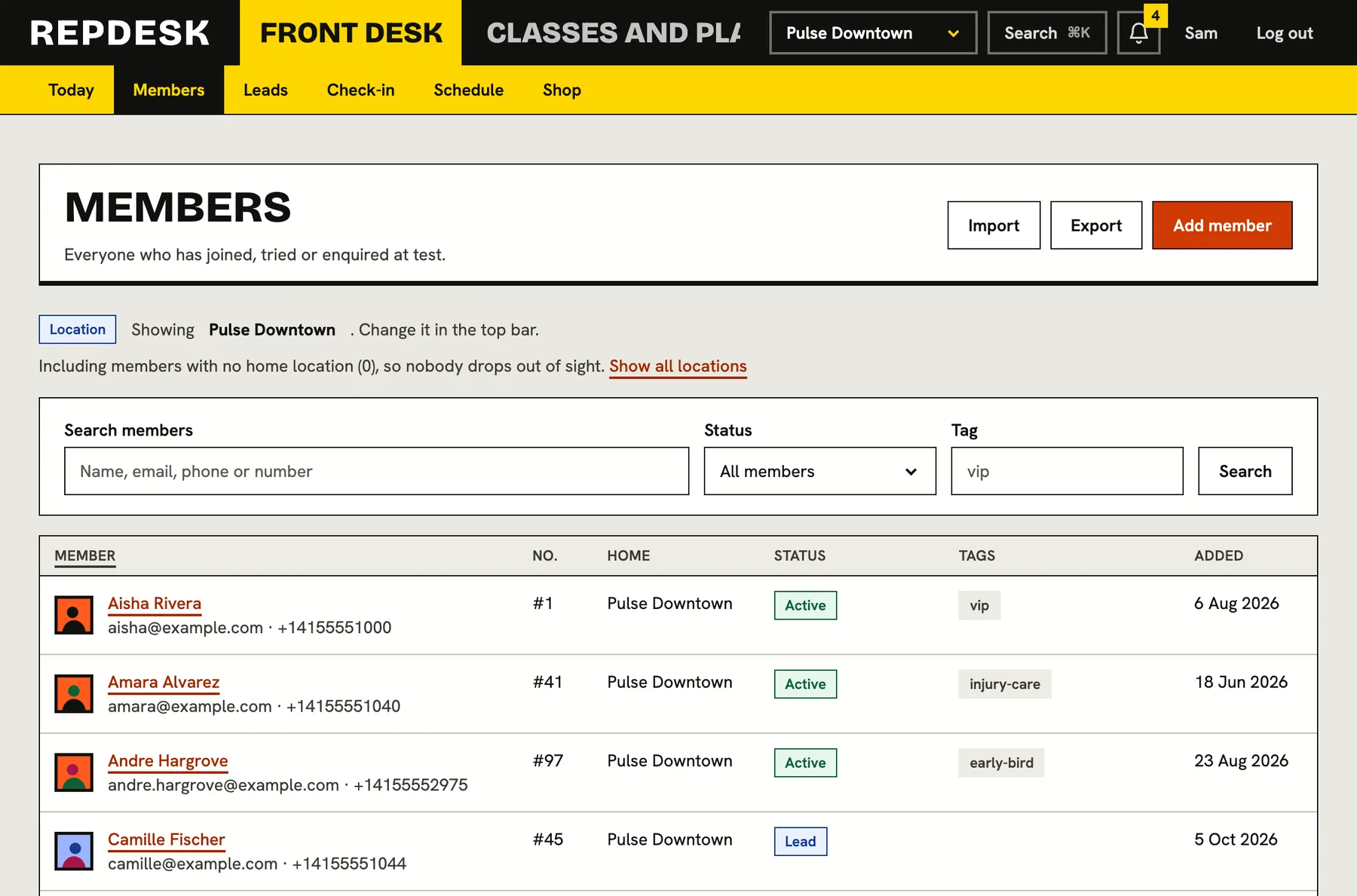
Search by name, email, phone or member number as you type. Narrow the list by status or tag, and sort it the way you need it. With several locations, the list follows the location you are working at.
- Statuses for leads, prospects, active, frozen, cancelled and former members
- Free-form tags such as vip or teacher-training
- A home location on every member
- The command palette finds members from anywhere with Cmd or Ctrl and K
One page, the whole story
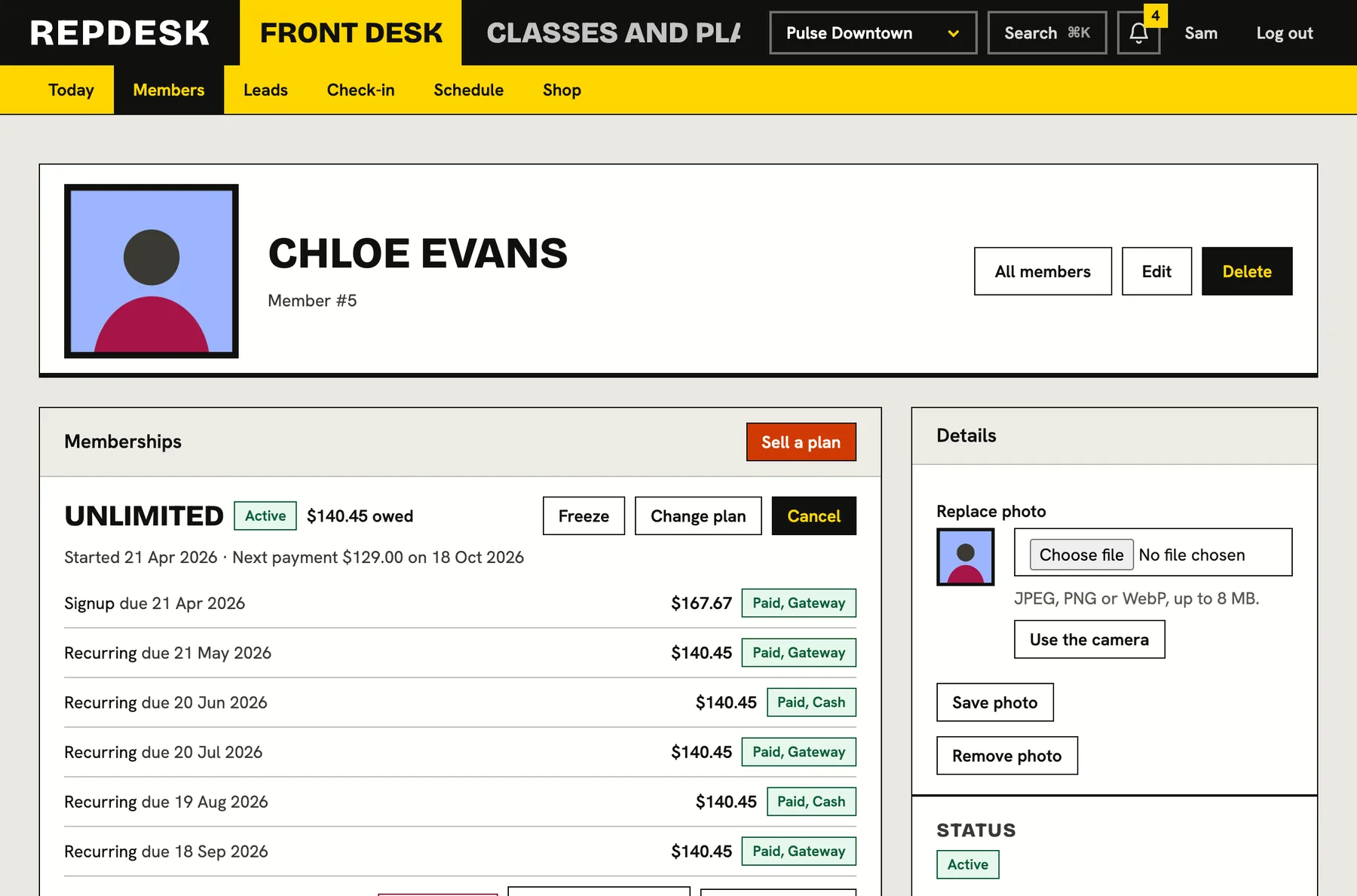
Open a member and you see everything about them at once. Which memberships they hold and their state, what they have spent, what credit they have, their recent visits, referrals, feedback they have left and the forms they have signed or still owe.
- Memberships with freeze, resume, cancel and change plan right there
- Attendance history and spend, so you know who is loyal and who is drifting
- Account credit and gift cards can be added from the page
- Each part of the page is shown only if the person's role may see it
Notes and flags the whole team can trust
Leave a note after a conversation and it stays with the member, visible to the people who need it. Put a flag on someone, such as an injury to watch or a payment issue, and choose whether it should block them from booking, at one location or at all of them.
- Notes with the author and the time
- Flags that can block booking and check-in where you choose
- Instructors can read notes and flags but not change them
- Answers on a waiver that matter, such as an injury, appear as a badge on class rosters
Bring your members with you, and take them if you leave
Upload a spreadsheet and the system checks it first, without saving anything, and tells you what it would create and update and which rows have problems. Column names are matched loosely, so your old system's headings usually just work. When you are happy, import it as one all-or-nothing step.
- Rows are matched by email, never by name, so people are updated rather than duplicated
- A full name in one column is split into first and last
- Export everyone you may see to a spreadsheet at any time
- Exports are protected so a name that looks like a formula cannot do harm in a spreadsheet
What happens when you import a spreadsheet
-
Step 1
Upload the file
Any spreadsheet with a column for each thing you know, in any order.
-
Step 2
A dry run
The system reports what it would create, update or skip, and lists problems by row. Nothing is saved yet.
-
Step 3
Import what you checked
The same file is imported, not a different one chosen since. If it fails halfway, nothing is saved.
-
Step 4
Everyone is ready
Members appear in your list and can be given plans, booked into classes and asked to sign forms.
Works together with
Questions
Can I move my members from my old system?
Yes. Export them from your old system as a spreadsheet and import the file. The check runs first so you can fix problems before anything is saved.
Can two people share one membership?
Yes. A membership can have more than one seat. The buyer pays and the people added to it use it.
What happens to history if someone leaves?
Set their status to former and every record is kept. Deleting a member removes their notes and flags too, so you are asked to confirm.
Do my staff all see everything?
No. Each role sees only what it needs, and people can be limited to certain locations.
Is there a record of who changed what?
Yes. Changes to members are written to the activity log, without copying names, emails or phone numbers into it.